'This project requires the following components:
' - a form (Form1) with a textbox (Text1, Multiline=True)
' and a command button (Command1)
' - a module (Module1)
'in Form1:
Private Sub Command1_Click()
Module1.Start
End Sub
'In Module1:
'With this small application , you can detect the IP's installed on your computer,
'including subnet mask , BroadcastAddr..
'I've wrote this because i've a programm that uses the winsock control, but,
'if you have multiple ip's installed on your pc , you could get by using the Listen
' method the wrong ip ...
'Because Winsock.Localip => detects the default ip installed on your PC ,
' and in most of the cases it could be the LAN (nic) not the WAN (nic)
'So then you have to use the Bind function ,to bind to your right ip..
'but how do you know & find that ip ?
'you can find it now by this appl.. it check's in the api.. IP Table..
Const MAX_IP = 5 'To make a buffer... i dont think you have more than 5 ip on your pc..
Type IPINFO
dwAddr As Long ' IP address
dwIndex As Long ' interface index
dwMask As Long ' subnet mask
dwBCastAddr As Long ' broadcast address
dwReasmSize As Long ' assembly size
unused1 As Integer ' not currently used
unused2 As Integer '; not currently used
End Type
Type MIB_IPADDRTABLE
dEntrys As Long 'number of entries in the table
mIPInfo(MAX_IP) As IPINFO 'array of IP address entries
End Type
Type IP_Array
mBuffer As MIB_IPADDRTABLE
BufferLen As Long
End Type
Public Declare Sub CopyMemory Lib "kernel32" Alias "RtlMoveMemory" (Destination As Any, Source As Any, ByVal Length As Long)
Public Declare Function GetIpAddrTable Lib "IPHlpApi" (pIPAdrTable As Byte, pdwSize As Long, ByVal Sort As Long) As Long
Sub main()
Form1.Show
End Sub
'converts a Long to a string
Public Function ConvertAddressToString(longAddr As Long) As String
Dim myByte(3) As Byte
Dim Cnt As Long
CopyMemory myByte(0), longAddr, 4
For Cnt = 0 To 3
ConvertAddressToString = ConvertAddressToString + CStr(myByte(Cnt)) + "."
Next Cnt
ConvertAddressToString = Left$(ConvertAddressToString, Len(ConvertAddressToString) - 1)
End Function
Public Sub Start()
Dim Ret As Long, Tel As Long
Dim bBytes() As Byte
Dim Listing As MIB_IPADDRTABLE
Form1.Text1 = ""
On Error GoTo END1
GetIpAddrTable ByVal 0&, Ret, True
If Ret <= 0 Then Exit Sub ReDim bBytes(0 To Ret - 1) As Byte 'retrieve the data GetIpAddrTable bBytes(0), Ret, False 'Get the first 4 bytes to get the entry's.. ip installed CopyMemory Listing.dEntrys, bBytes(0), 4 'MsgBox "IP's found : " & Listing.dEntrys => Founded ip installed on your PC..
Form1.Text1 = Listing.dEntrys & " IP addresses found on your PC !!" & vbCrLf
Form1.Text1 = Form1.Text1 & "----------------------------------------" & vbCrLf
For Tel = 0 To Listing.dEntrys - 1
'Copy whole structure to Listing..
' MsgBox bBytes(tel) & "."
CopyMemory Listing.mIPInfo(Tel), bBytes(4 + (Tel * Len(Listing.mIPInfo(0)))), Len(Listing.mIPInfo(Tel))
Form1.Text1 = Form1.Text1 & "IP address : " & _ \tab ConvertAddressToString(Listing.mIPInfo(Tel).dwAddr) & vbCrLf
Form1.Text1 = Form1.Text1 & "IP Subnetmask : " & _
ConvertAddressToString(Listing.mIPInfo(Tel).dwMask) & vbCrLf
Form1.Text1 = Form1.Text1 & "BroadCast IP address : " & _
ConvertAddressToString(Listing.mIPInfo(Tel).dwBCastAddr) & vbCrLf
Form1.Text1 = Form1.Text1 & "**************************************" & vbCrLf
Next
'MsgBox ConvertAddressToString(Listing.mIPInfo(1).dwAddr)
Exit Sub
END1:
MsgBox "ERROR"
End Sub
Showing posts with label Vb Api Function. Show all posts
Showing posts with label Vb Api Function. Show all posts
API Explanation
The GetIpAddrTable function retrieves the interface-to-IP address mapping table.
Parameter Information
Declare Function GetIpAddrTable Lib "IPHlpApi" (pIPAdrTable As Byte, pdwSize As Long, ByVal Sort As Long) As Long
· pIpAddrTable
[out] Pointer to a buffer that receives the interface–to–IP address mapping table as a structure.
· pdwSize
[in, out] On input, specifies the size of the buffer pointed to by the pIpAddrTable parameter.
On output, if the buffer is not large enough to hold the returned mapping table, the function sets this parameter equal to the required buffer size.
· bOrder
[in] Specifies whether the returned mapping table should be sorted in ascending order by IP address. If this parameter is TRUE, the table is sorted.
If the function succeeds, the return value is NO_ERROR.
If the function fails, use to obtain the message string for the returned error.
API Explanation
Opens an FTP, Gopher, or HTTP session for a given site.
Parameter Information
Declare Function InternetConnect Lib "wininet.dll" Alias "InternetConnectA" (ByVal hInternetSession As Long, _
ByVal sServerName As String, ByVal nServerPort As Integer, ByVal sUserName As String, _
ByVal sPassword As String, ByVal lService As Long, ByVal lFlags As Long, ByVal lContext _
As Long) As Long
· hInternet
[in] Valid HINTERNET handle returned by a previous call to InternetOpen.
· lpszServerName
[in] Address of a null-terminated string that contains the host name of an Internet server. Alternately, the string can contain the IP number of the site, in ASCII dotted-decimal format (for example, 11.0.1.45).
· nServerPort
[in] longof the TCP/IP port on the server to connect to. These flags set only the port that will be used. The service is set by the value of dwService. This can be one of the following values:
INTERNET_DEFAULT_FTP_PORT
Uses the default port for FTP servers (port 21).
INTERNET_DEFAULT_GOPHER_PORT
Uses the default port for Gopher servers (port 70).
INTERNET_DEFAULT_HTTP_PORT
Uses the default port for HTTP servers (port 80).
INTERNET_DEFAULT_HTTPS_PORT
Uses the default port for HTTPS servers (port 443).
INTERNET_DEFAULT_SOCKS_PORT
Uses the default port for SOCKS firewall servers (port 1080).
INTERNET_INVALID_PORT_NUMBER
Uses the default port for the service specified by dwService.
· lpszUsername
[in] Address of a null-terminated string that contains the name of the user to log on. If this parameter is NULL, the function uses an appropriate default, except for HTTP; a NULL parameter in HTTP causes the server to return an error. For the FTP protocol, the default is "anonymous".
· lpszPassword
[in] Address of a null-terminated string that contains the password to use to log on. If both lpszPassword and lpszUsername are NULL, the function uses the default "anonymous" password. In the case of FTP, the default password is the user's e-mail name. If lpszPassword is NULL, but lpszUsername is not NULL, the function uses a blank password.
· dwService
[in] Unsigned long integer value that contains the type of service to access. This can be one of the following values:
INTERNET_SERVICE_FTP
FTP service.
INTERNET_SERVICE_GOPHER
Gopher service.
INTERNET_SERVICE_HTTP
HTTP service.
· dwFlags
[in] Unsigned long integer value that contains the flags specific to the service used. When the value of dwService is INTERNET_SERVICE_FTP, INTERNET_FLAG_PASSIVE causes the application to use passive FTP semantics.
· dwContext
[in] Address of an unsigned long integer value that contains an application-defined value that is used to identify the application context for the returned handle in callbacks.
Returns a valid handle to the FTP, Gopher, or HTTP session if the connection is successful, or NULL otherwise. To get extended error information, call GetLastError. An application can also use InternetGetLastResponseInfo to determine why access to the service was denied.
Browsing through the list of available items in the API viewer, you can probably guess what most of the functions do, like the 'AddPrinter' function, for example. But what the heck is 'FlushConsoleInputBuffer'? It doesn't matter if you don't understand every single API call, but if you want to know what each one does, you can visit the Microsoft API resource page.
So, let's get started with writing our very first program that takes advantage of the Windows API. Start by creating a new project in Visual Basic 6. You will require a single form and one module (you can name them whatever you want, because it doesn't really matter in our example). The program that we are going to write will simply display a message box, which contains the path of the Windows directory.
Using the API Viewer, look for the function called 'GetWindowsDirectory'. When you've found it in the list, click the 'Add' button. Its source code should appear in the selected items box. Copy the source onto the Windows clipboard. In case you are unsure, here's what the source should look like:
Declare Function GetWindowsDirectory Lib "kernel32" Alias "GetWindowsDirectoryA" (ByVal lpBuffer As String, ByVal nSize As Long) As Long
We now have access to the source code that will call up the API function. As you can see, this API is located within the Kernal32.DLL file. With the source code copied to the Windows clipboard, return to Visual Basic and paste it in as part of the source code for the Module. It should be pasted at the top, before anything else. When your program is interpreted and executed, your application will now make a request directly to an API call. Our single API decleration is useless at the moment, however. We need to call the API function from within our program. That's what we will do right now... Place a command Button on your form and set the caption to 'Show Windows Directory'. I am going to assume that the name of this command button has been left as Command1. We will be attaching code to the Click event of this button, so open up the Command1_Click() sub-routine and enter the code below:
Private Sub Command1_Click()
Dim TheResult
Dim TheWindowsDirectory As String
TheWindowsDirectory = Space(144)
'Fill 144 spaces in TheWindowsDirectory string
TheResult = GetWindowsDirectory(TheWindowsDirectory, 144)
'Get path and place it in TheResult string
If TheResult = 0 Then
MsgBox "Cannot get the Windows Directory"
Else
'Prepare the String for preview, and then display in a Message Box
TheWindowsDirectory = Trim(TheWindowsDirectory)
MsgBox "The Windows Path: " & TheWindowsDirectory
End If
End Sub
Run the program and click on the command button. A messagebox similar to the one shown below should be displayed:
This message box shows that Windows has been installed into the directory (or folder) with the path 'C:\Windows\'. Your box may vary to mine, depending on where Windows has been installed on your computer.
You may be asking yourself why an API function like this would be used. Well, if your project was built to perform a task that has a use for the Windows directory, then you are going to need to know the location of it, and using the API is the easiest way.
If you hard coded the windows directory into your application. then an error may occur, because not all people choose to install Windows to the default c:\windows directory.
There are other API functions available through the same DLL that perform a similar task to the one that we have just coded. For example, 'GetSystemDirectory' will display the full path to the Windows System Directory. In my case, the result would be 'C:\Windows\System', but it may say something different on other systems, depending on where Windows is installed
There are literally thousands of API functions available throughout the numerous Windows API DLL libraries. Almost everything that Windows can do is listed as an API function. To view the available list of Windows API's, we can use the API viewer, which is installed along with Visual Basic. To start the API viewer, click Start -> Programs -> Microsoft Visual Studio 6 -> Microsoft Visual Studio 6 Tools -> API Text Viewer. You should be presented with a screen like the one shown below:
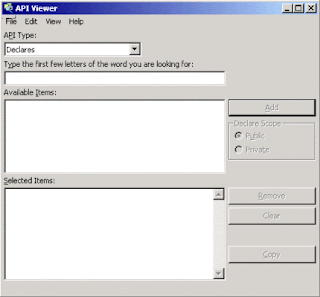 To get started, you'll need to load up the file that contains the list of API's. Start by clicking File, then Load Text File. Find the file named Win32api.txt and load it up. If a box appears asking you if you want to change this file from text to database, accept it. This will make your viewing much faster.
Try not to be overwhelmed by the jumble of weird and seemingly never-ending functions that greet you when the file is loaded, because you will get used to them after a while. Now, let’s make sure we're familiar with the new environment that we're working with. Starting from the top of the window and working down, you can see a drop-down menu. This is for changing the API type. Make sure that this is set to 'Declares', because we will need it for the next section.
Below the menu is a large list box. This lsit box displays all of the available items for the API Type that you have selected. When you have found the item that you want to learn more about, click on the 'Add' button and the command will appear in the box directly below the one I have just been explained.
When you have one or more items in this box, the two buttons labeled 'Remove' and 'Copy' will be enabled. The 'Remove' button deletes selected items that you do not require, and the 'Copy' button copies the whole lot onto the Windows clipboard. Make sure you keep the API viewer open now, because we will be using it in conjunction with the next section.
 To get started, you'll need to load up the file that contains the list of API's. Start by clicking File, then Load Text File. Find the file named Win32api.txt and load it up. If a box appears asking you if you want to change this file from text to database, accept it. This will make your viewing much faster.
Try not to be overwhelmed by the jumble of weird and seemingly never-ending functions that greet you when the file is loaded, because you will get used to them after a while. Now, let’s make sure we're familiar with the new environment that we're working with. Starting from the top of the window and working down, you can see a drop-down menu. This is for changing the API type. Make sure that this is set to 'Declares', because we will need it for the next section.
Below the menu is a large list box. This lsit box displays all of the available items for the API Type that you have selected. When you have found the item that you want to learn more about, click on the 'Add' button and the command will appear in the box directly below the one I have just been explained.
When you have one or more items in this box, the two buttons labeled 'Remove' and 'Copy' will be enabled. The 'Remove' button deletes selected items that you do not require, and the 'Copy' button copies the whole lot onto the Windows clipboard. Make sure you keep the API viewer open now, because we will be using it in conjunction with the next section.
The Windows Application Programming Interface, or API, is a complex set of functions for interacting with Windows. In this article, Jason attempts to shed some light on this topic by explaining what an API is, and providing an example of how to access one through Visual Basic.The Windows Application Programming Interface, or API, is a complex set of functions which allow Visual Basic, C++, Java and Delphi programmers to gain access to many of the functions that windows uses internally, such as printing, thread-based resources, and the registry.
In this article, I will try to help demistify this difficult topic by explaining a bit about API's. I will also provide a working example in Visual Basic to show how to call an API. You have probably heard of the Windows API numerous times, but you may not know exactly what it is. Basically, it is a whole set of implementation specific DLL hosted functions, which are accessible through Visual Basic, C++, Java and Delphi. The main API functions reside in three system DLL files, which are located on every computer that is using the Windows operating system.
There are many more DLLs which are accessible through the Windows Operating System, however, they are seperated into numerous other system DLL files, which we will not discuss here.
Microsoft bundled all of the API functions into system DLL's so that they were easily accessible for developers from a number of programming languages. One advantage of using the Windows API is that each function is highly optimised, and usually written in C/C++, meaning that they are a lot faster than using the standard set of functions available in Visual Basic.
It is possible to use functions from other DLL files, as long as you know the declarations to access the functions. The developer of the DLL must provide a detailed set of documentation, telling other developers how to create an API decleration for the functions contained within that DLL.
API calls can be used to perform almost any Windows task, from shutting down a computer to installing a printer. Because of the multi-threaded mature of the Windows operating system, several programs can access the Windows API simultaneously.
Later in this tutorial, I will describe how to use one of the most common Windows API calls in Visual Basic.
Windows API functions are very fast and powerful, but actually calling them up and executing them can be time consuming. I would recommend that you only use Windows API functions if the task you are trying to implement is not available as a regular Visual Basic function or statement. Of course, the task that you want to implement may not be available as a Windows API function.
Subscribe to:
Posts (Atom)


